How to Animate a Photo with AI
Animating a photo used to mean hiring a motion designer or spending hours in After Effects. Image-to-video AI has collapsed that into a job that takes a few minutes: you upload a still picture, describe the movement you want, and the model generates a short video clip from it. This guide walks through the exact steps, the mistakes that produce warped faces and melting backgrounds, and which tools handle the job best - including what you can do without paying.
To animate a photo with AI, upload a sharp, well-lit image to an image-to-video tool such as Deevid AI, write a short prompt describing the motion you want, and hit generate. The tool turns the still into a short video clip that you can download, regenerate or upscale. Most platforms, Deevid AI included, let you test this on free credits before paying anything.
What animating a photo with AI actually does
The feature you are looking for is usually called image-to-video. You give the model a still image, it treats that image as the first frame of a video, and it generates the frames that follow - camera drift, blinking, hair moving in the wind, steam rising from a cup - based on your text prompt.
It helps to understand what it is not. The AI does not know what was behind the person in your photo or what their hands look like from another angle; it invents all of that. Small, plausible movements work brilliantly because the model barely has to invent anything. Ask it to make someone stand up and turn around and you will watch the picture fall apart.
One more thing worth knowing before you start: almost every serious tool offers a free way to try this. If budget is your first question, start with our guide to free image to video AI tools, which covers what each free plan really gives you.
How to animate a photo, step by step
The workflow is nearly identical across platforms. Here is how it looks in Deevid AI, which is the most straightforward version of it:
- Pick the right photo. Sharp focus, decent lighting, subject facing the camera. This one choice affects the result more than anything you type later.
- Upload it to the image-to-video tool. In Deevid AI, open the Image to Video tool and drop your file in. JPG and PNG are accepted everywhere.
- Write a short motion prompt. Describe the movement, not the scene. 'She smiles slightly and blinks, hair moving in a light breeze' beats a full paragraph of description - the image already contains the scene.
- Generate and wait. Rendering usually takes a few minutes, depending on the tool and how busy it is.
- Review, then regenerate or download. If a hand warps or the background wobbles, nudge the prompt toward subtler motion and run it again. When it looks right, download the clip.
That is genuinely the whole process. The skill is not in the software - it is in photo selection and prompt restraint, which is what the next section covers.
How to get a clean, natural result
Most disappointing results trace back to the same handful of causes. Work through this list before blaming the tool:
- Use a front-facing, well-lit photo. Models animate faces far better when both eyes are visible. Harsh shadows and cluttered backgrounds give the AI more to invent, and more to get wrong.
- Ask for subtle motion. A slight smile, a slow blink, a gentle camera push-in. Subtle prompts fail rarely; dramatic ones fail often.
- Keep hands out of frame if you can. Hands remain the weak point of every video model. Crop tighter or pick a pose where they rest naturally.
- Regenerate without guilt. Two runs from the same photo and prompt can look completely different. Treat the first attempt as a draft, not a verdict.
- Match the format to the destination. Vertical for Reels and TikTok, horizontal for YouTube - set the aspect ratio before generating, not after.
The best tools to animate a photo
You do not need ten tools for this job; you need one that matches how you work. From the platforms in our ranking of the best AI video generators, three stand out specifically for photo animation.
Deevid AI is the practical starting point: fast to learn, free credits to test with, and image-to-video sits next to text-to-video and an editor, so you can finish the clip in one place. Kling AI produces some of the most lifelike human motion available right now, which shows in portrait work - see how the two stack up in our Deevid AI vs Kling AI comparison. Runway offers the deepest motion controls of the three, aimed at people who edit video professionally; the Deevid AI vs Runway breakdown covers where that extra complexity pays off and where it does not.
Three tools that animate photos well
Dozens of tools can technically do this. These three cover the realistic range of needs, from a first test to professional work.
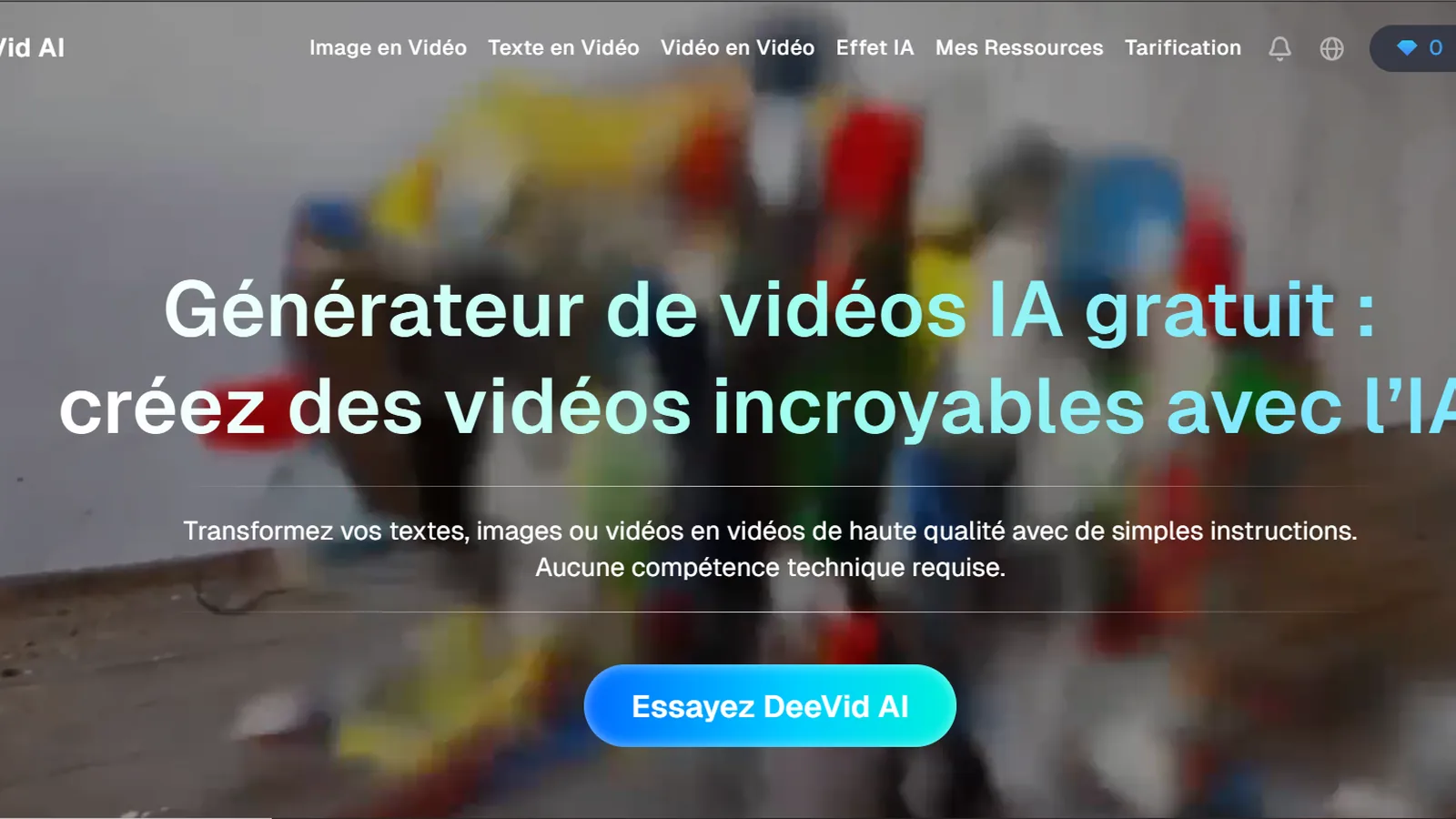
Deevid AI
The easiest way to test photo animation. Upload an image, type a one-line motion prompt and generate; free credits let you try image-to-video before paying, and the built-in editor, text-to-video and upscaler mean you can finish the whole clip without leaving the tab.
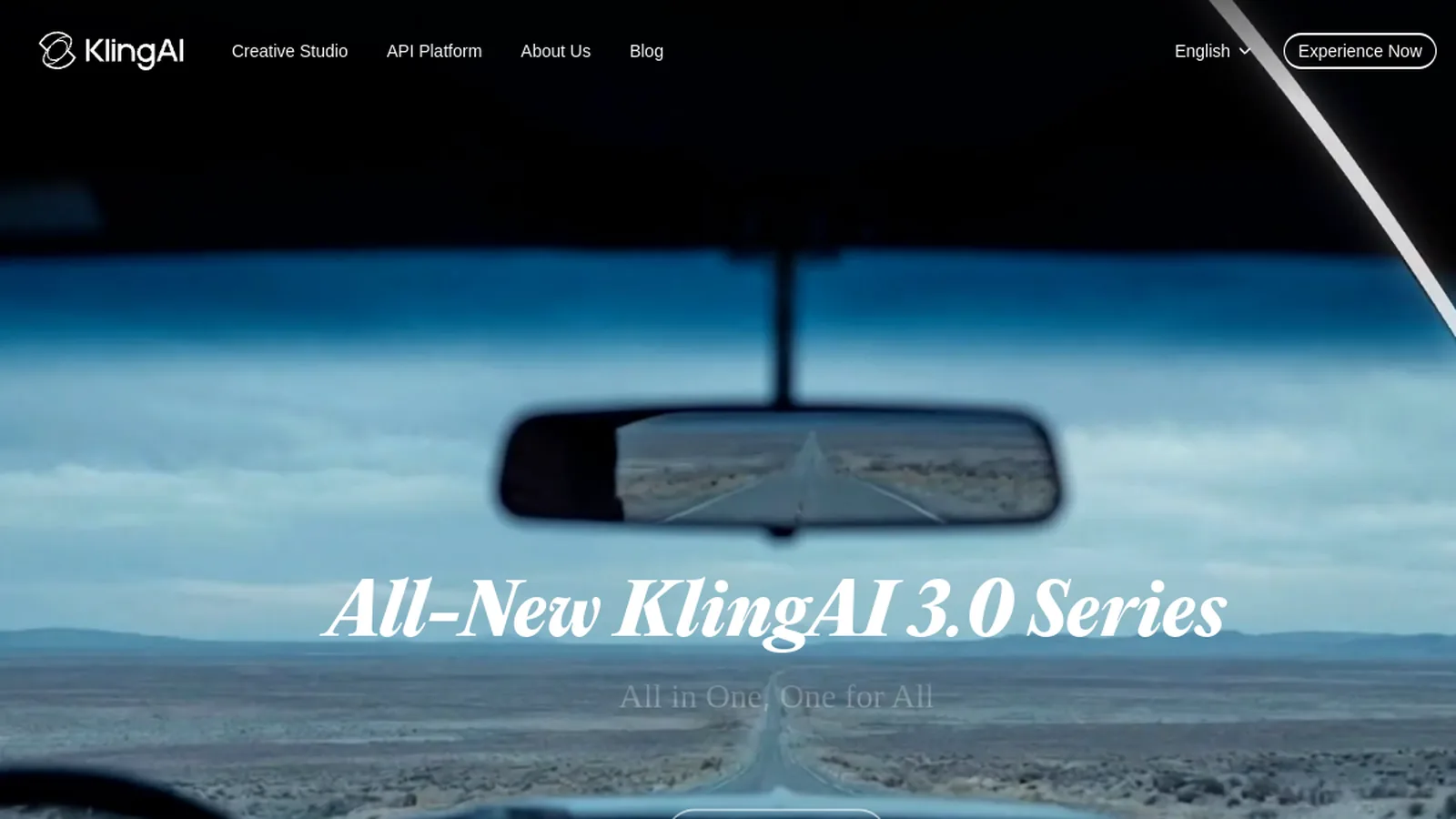
Kling AI
Known for realistic physics and natural human movement, which makes it especially strong on portraits. Free-tier generations can sit in a queue, and the interface takes a bit longer to learn, but the motion quality rewards the patience.
Runway
A pro-grade suite with fine-grained motion controls and editing tools built around its video models. Powerful once mastered, but pricier and more complex than most people need for animating a single photo.
The fastest way to know if this works for your photo is to try it. Deevid AI includes free credits, so you can watch your picture move before spending anything.
Animate your photo freeUse cases, and what free plans actually get you
Three uses come up constantly. Old family photos: a subtle blink-and-smile animation on a scanned portrait of a grandparent is the use case that made this technology famous, and it remains the most reliable one. E-commerce products: a slow rotation or a gentle camera push on a product shot turns a static listing image into an ad asset without booking a studio. Portraits and social content: animated profile pictures, book covers and album art grab attention precisely because people do not expect stills to move.
On money: free plans nearly always exist, and they nearly always come with a catch - a watermark on the export, lower resolution, a slower queue, or a small pot of credits that runs out fast. That is fine for testing and unusable for client work. Deevid AI follows the same pattern: free credits to trial with, then paid plans that remove the watermark and raise the limits - the full details are on the Deevid AI pricing page.
And if your project starts from an idea rather than an existing image, image-to-video is the wrong tool for the job. You want text-to-video instead, and there are free text to video AI tools that let you test that side without paying either.
Frequently asked questions
Can I animate a photo with AI for free?
Yes. Deevid AI, Kling AI and most competitors offer free credits or a free tier. Expect trade-offs: watermarked exports, lower resolution or a limited number of generations. Free plans are ideal for testing whether the result fits your project before you pay for anything.
What kind of photo works best?
A sharp, well-lit image with the subject facing the camera and a reasonably clean background. Blurry, dark or heavily angled photos force the model to invent missing detail, which is exactly where warping and artifacts come from.
How long does it take to animate a photo?
Usually a few minutes per clip, though it varies with the tool, the clip length and how busy the servers are. Free tiers are often queued behind paying users, so paid plans generate noticeably faster.
Can I animate old or black and white photos?
Yes, and it is one of the most popular uses. Scan the print at the highest quality you can, keep the requested motion subtle - a blink, a slight smile, a small head turn - and the result can be surprisingly moving. Some tools also restore or colorize the photo before animating it.
Why does my animated photo look warped or distorted?
Almost always one of three things: the source photo is low resolution, the subject's face is turned away from the camera, or the prompt asks for too much movement. Fix the input, ask for less motion, and regenerate - results vary between runs even with identical settings.
Do I need any editing skills to do this?
No. Uploading a photo and typing a sentence is the entire technical requirement. Editing skills only matter afterwards, if you want to trim the clip, add music or chain several animated photos into a longer video - which tools like Deevid AI handle with a built-in editor.
Ready to see your photo move?
Upload a picture, describe the motion in one sentence and let the model do the rest. Deevid AI bundles image-to-video, text-to-video and an editor in one place, with free credits so you can judge the quality on your own photos first.
Try Deevid AI for free